FW Hospitality
FW Staff
FW Hospitality Staff · Singapore
A closed desk for hotel shifts. Vacancy, then interest, then place — and one WhatsApp group.
01
Vacancy
Ops posts the hotel, site, shift, and rate. It stays inside this closed hotel desk.
02
Interest
Copy the blast, open M Luck Job Vacancies, and paste. Opted-in staff tap I’m available.
03
Place
Ops confirms one name from the shortlist. The shift stays open until that confirm.
Age and eligibility
FW Staff is a workplace tool for hotel staffing. It is not directed at children and it is not a public job board.
I am using this desk as a workplace tool, not for a child.
WhatsApp
You copy the blast and you send it in M Luck Job Vacancies. FW Staff does not call the WhatsApp Cloud API and does not send messages from a server. Opening WhatsApp leaves this app.
I agree that WhatsApp sends only happen when I copy and paste them myself.
Privacy
Read how FW Staff handles names and mobiles before you continue. The same notice is published at https://www.mluck.sg/privacy.
I have the privacy page. This desk may keep a name and mobile on this device for interest and place.
How it works
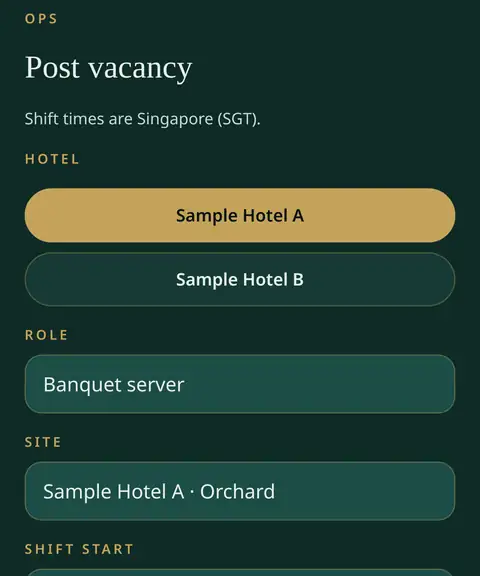
1 Post a vacancy
Ops picks the hotel, role, shift and rate.
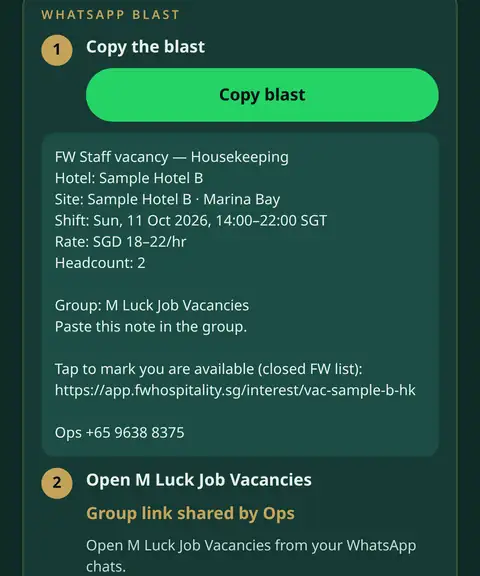
2 Share on WhatsApp
Copy the blast and paste it in the staff group.
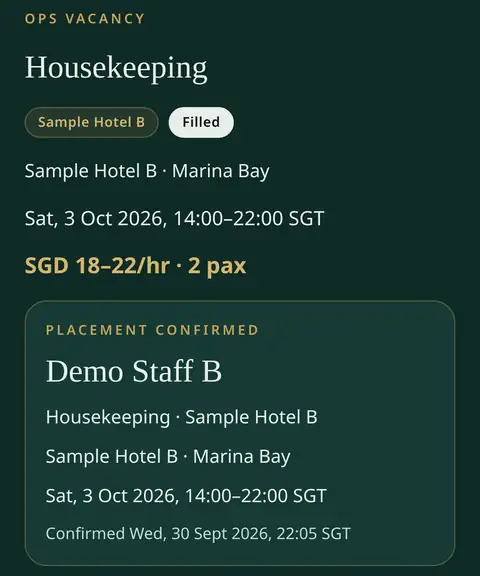
3 Place and confirm
Ops places one name from the shortlist.
Real FW Staff screens with sample data (Sample Hotel A and B, Demo Staff).
Link this phone
There is no password. Ops sends a personal invite. Paste it here, or continue and link later from a vacancy. Ops can continue without a code.
Link this phone with the invite Ops sent you. The group blast does not include that code.
Invite
Recovery: if this phone is lost, ask Ops for a new invite. This version has no account password and no server copy of the desk.
Delete desk data
Delete clears the role, the linked name, and local shifts on this device, then returns to this intro. The same control is on Support.
Blast group: M Luck Job Vacancies.
FW Hospitality Management Pte Ltd · UEN 201010174H
Tick all three boxes to continue (0 of 3).